How to Redeem Create Swords Codes
Exact PC and mobile steps plus fixes for invalid, used, or missing code prompts.
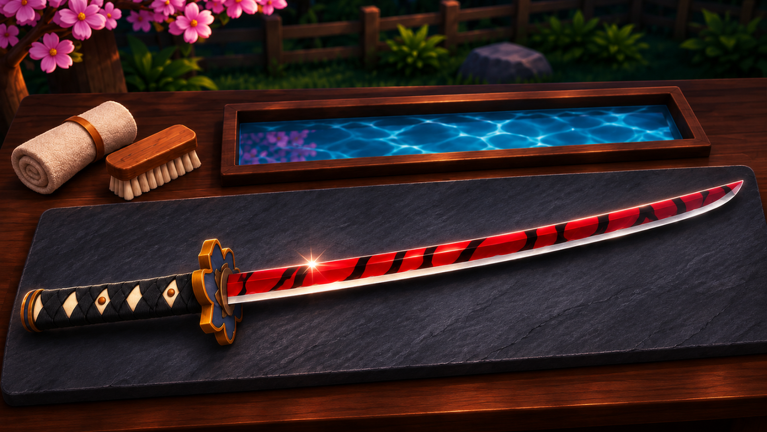
Redeem Create Swords codes without wasting a boost
Create Swords! by ADEM Games posts promo codes in the Roblox description and after milestones. Redeeming quickly matters in an incremental forge simulator because early coins and temporary multipliers — especially THANKSGIVING for 2x coins — change how fast you hire workers and clear sales. This page is the step-by-step redemption guide for PC and mobile, with troubleshooting for invalid, already used, and missing-button errors.
Active strings always live on the Codes Hub. Use this page when the button misbehaves or you want a clean first-join routine before Getting Started.
Before you redeem
- Confirm you are in the official Create Swords place (place ID 93453899201090).
- Wait until your character fully loads into the forge lobby — mid-load taps often miss the Codes UI.
- Have the active list ready:
THANKSGIVING,SWORDS, and1KCCUas of the November 28, 2026 check. - Decide spend order after rewards land: workers and forge speed beat cosmetics.
During Thanksgiving, redeem before long forge or sale sessions so 2x coins applies to the income you are about to generate. Event context sits on Thanksgiving 2026 Update.
Step-by-step on PC
- Launch Roblox and open Create Swords!.
- Skip or close any one-time tutorial overlays that block the HUD.
- Locate the Codes button — typically a gift, ticket, or social-style icon on the HUD.
- Click Codes to open the redeem field.
- Paste
THANKSGIVINGexactly, with no spaces before or after, and press Redeem. - Wait for the success toast, then redeem
SWORDS. - Redeem
1KCCUthe same way. - Close the Codes panel fully so it does not eat clicks meant for the forge.
- Immediately sell ready stock or start a planned forge cycle under the boost.
If the cursor cannot click the icon, press Esc once to clear menus, then try again.
Step-by-step on mobile
- Open the Roblox app and join Create Swords!.
- Let the lobby finish streaming — mobile HUDs often appear a second after your avatar.
- Find the Codes icon above or beside the joystick zone; do not cover it with your thumb.
- Tap Codes, then tap the text field to bring up the keyboard.
- Paste or type
THANKSGIVINGcarefully — mobile autocorrect is a common fail source. - Tap Redeem and confirm the reward message.
- Repeat for
SWORDSand1KCCU. - Dismiss the panel, then move to the roll station or sell booth.
Landscape mode sometimes reveals icons that portrait hides. Rotate once if Codes seems missing.
Console notes
Console players use the same Codes panel through the Roblox HUD. Navigate with the controller to the Codes icon, open the on-screen keyboard if needed, and enter codes exactly. Avoid opening the Roblox system menu mid-redeem or you may lose the toast confirmation.
Where Create Swords codes appear
Trust these sources first:
- The official Roblox game description (codes often sit near the top during events).
- ADEM Games group shout-outs after visit or CCU milestones.
- In-game banners when holiday title tags (turkey emoji during Thanksgiving) are active.
- This wiki’s Codes Hub after we verify against the live page.
Do not trust random image macros that omit dates or rewards. Near November 28, 2026 the game’s growth (~243K visits, peak ~3,420 CCU) attracted copy-paste lists that mixed expired strings with working ones.
Case sensitivity and typing rules
Most Create Swords codes are case-sensitive. Follow these rules:
- Paste when possible instead of retyping.
- Never add spaces, punctuation, or emoji.
- Match uppercase exactly (
THANKSGIVING, notthanksgiving). - Redeem one code at a time; do not concatenate rewards in one field.
- If paste fails on mobile, type slowly and disable autocorrect for the Roblox keyboard session.
Troubleshooting invalid or already used codes
Invalid code
- Check spelling against the Codes Hub.
- Remove hidden spaces by deleting the field and repasting.
- Confirm the event has not ended — holiday codes expire.
- Rejoin a fresh server after a publish wave listed on Updates.
Already redeemed
- That account already claimed the reward. Try a different account only if you intentionally maintain alts.
- Success toasts can be easy to miss on busy HUDs; check coin balance before assuming failure.
Codes button missing
- Wait for full UI load.
- Rotate mobile orientation or zoom the camera slightly.
- Close other menus (shop, inventory, settings).
- Rejoin after November-style multi-publish days when HUD icons may move.
No reward toast
- Look for a brief on-screen message near the HUD edge.
- Check whether coins or items already updated.
- Redeem the next code only after you are sure the first resolved.
Redeem-before-forge rule for THANKSGIVING
THANKSGIVING is a 2x coin boost. The correct order is:
- Redeem the code.
- Confirm the boost is active if the UI shows a multiplier indicator.
- Sell queued commons and craft high-value metals.
- Hire or upgrade with the doubled income.
Forging a rare stack and only then remembering the code wastes the best sales of the session. Pair redemption with the economy notes on Sell Swords and the event checklist on Thanksgiving 2026.
Redemption checklist
- Official place loaded
- Codes panel opened successfully
-
THANKSGIVINGredeemed first during the holiday window -
SWORDSand1KCCUredeemed - Panel closed
- Coins spent on production, not cosmetics
- Hub bookmarked for the next Updates drop
Common mistakes
Typing codes in Roblox chat. Chat is not the redeem box.
Redeeming after a long AFK. Boost windows and session focus both suffer.
Sharing expired codes as active. Check the hub date every session.
Ignoring mobile autocorrect. It silently breaks case-sensitive strings.
Master redemption once and every future milestone code becomes a ten-second habit. Then return to forging — codes only matter when the anvil and sell booth turn them into a larger sword empire.
Frequently Asked Questions
Quick answers for Create Swords forgers.
How do I redeem codes in Create Swords on mobile?
Join the game, wait for the HUD, tap the Codes icon, paste the code exactly without autocorrect changes, and press Redeem. Rotate to landscape if the icon is hidden.
Why does Create Swords say a code is invalid?
Usually a typo, extra space, wrong case, or an expired event code. Re-check the Codes Hub and rejoin after recent publishes before trying again.
What does already redeemed mean?
That Roblox account already claimed the code. Each code generally works once per account, even if you reinstall or change devices.
Should I redeem THANKSGIVING before forging?
Yes. Redeem the 2x coins code first, then sell and forge so the multiplier applies to the income from that session.